Install
macOS 14.4 or later · Every keyboard macOS has.
- Download
CommonKeys.zip, unzip it, and move Common Keys to Applications. Or open the disk image and drag it there. - Open it. The first time, macOS says it can't verify the developer: the build is signed but not notarized. Open System Settings › Privacy & Security, scroll down, and click Open Anyway next to
Common Keys. Or clear the flag from a terminal:
xattr -dr com.apple.quarantine "/Applications/Common Keys.app" - Allow Accessibility access when asked, to see what you type and fix it. It's a switch in System Settings › Privacy & Security › Accessibility. Until the builds are notarized, each update needs this allowed again, because the build's signature changes.
- Type a word on the wrong keyboard and press space. It’s fixed, and the layout switches.
From a terminal
Both install the same build and clear the quarantine flag, so there is no Open Anyway step.
brew install --cask oddurs/common-tools/common-keysHomebrew keeps it current with brew upgrade. The cask is in oddurs/homebrew-common-tools.
curl -fsSL https://oddurs.github.io/common-tools/install.sh | sh -s -- keysThe script downloads the latest release, checks it against the published checksum, installs it in Applications in place of an older copy, and opens it. Name several apps to install them all, or run it with no name to list them. It's short enough to read first.
Every release, with checksums and notes, is on GitHub. To check a download: shasum -a 256 -c CommonKeys.zip.sha256.
Missed the prompt? Choose Allow Accessibility Access… from the menu; it opens the right pane. If Common Keys is already on there, that switch belongs to an earlier copy: choose Reset and Ask Again….
How fixing works
Type a word on the wrong layout and press space. Common Keys reads the keys you pressed on each keyboard you have, picks the reading that's a real word, replaces it, and switches to that layout:
/ettaon U.S. becomes þetta and switches to Icelandic.ghbdtnbecomes привет,dkssudbecomes 안녕.
A small bubble shows the fix, what was there before, and ⌘Z. Press ⌘Z right after a fix to undo it; that word is left alone from then on.
It changes a word only when the evidence is clear: the system spell checker, spelling rules no word breaks (a Hebrew final letter mid-word, two scripts in one word), the language recognizer, and what you've taught it. Paths, links, and password fields are left alone.
Shortcuts
| Shortcut | Does |
|---|---|
| Double-tap right ⌥ | Convert the word before the cursor to your other layout, or undo a fix made a moment ago. |
| ⌥⇧Space | Switch to the next layout. |
| ⌘Z after a fix | Undo it, and never fix that word again. |
Change both in Settings › Shortcuts. Convert can be a double tap of ⇧, right ⌥, or ⌃, or off.
Per-app layouts
Switch apps and you get the layout you last used there, or the one you usually write in. A switch in one app never leaks into the next.
To pin an app to one layout or pause Common Keys in it, use In <App> in the menu, or Settings › Exceptions. Terminals and code editors start paused.
What it learns
Erase a word and type the same keys again on another layout, or use the convert shortcut, and it remembers the word and the keys you mixed up. It also learns which language you write in each app.
Everything stays on your Mac, in ~/Library/Application Support/Common Keys/memory.json. Settings › Learning › Forget Everything… clears it. No network, no telemetry, no account.
The menu
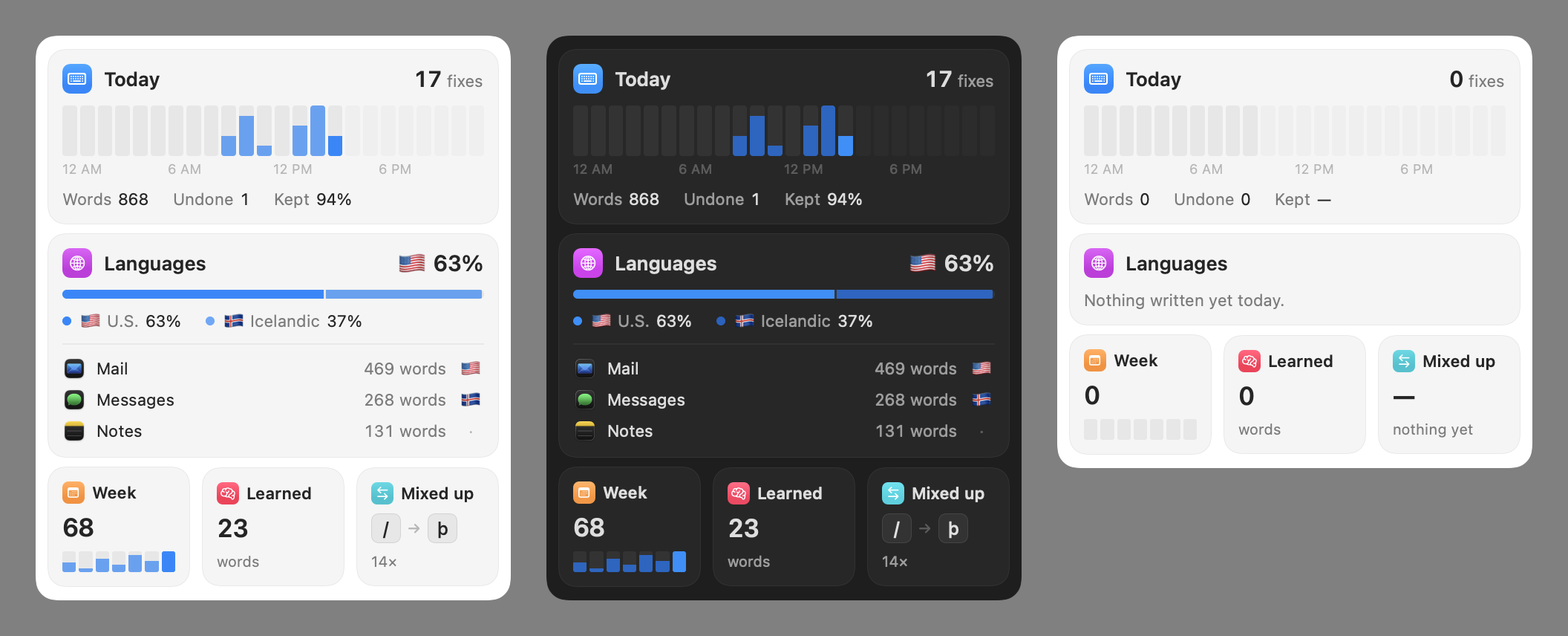
The menu bar shows the current layout's flag. In an app pinned to that layout a lock sits beside it. The flag is dimmed while Common Keys isn't fixing: without Accessibility access, after Pause Fixing, or in an app paused without a pin. Its menu opens with cards for today's fixes, the languages you wrote in each app, the week, what it has learned, and the keys you mix up most. Below them are your layouts (with the preferred one marked), Next Layout, the front app's settings, Pause Fixing, Settings…, and Quit.
Settings
Choose Settings… from the menu, or open Common Keys again while it's running. In order:
- Shortcuts: the next-layout shortcut, and how to convert the last word.
- Exceptions: apps pinned to one layout or paused. Only installed apps are listed.
- Learning: what it has learned so far, and Forget Everything….
- General: Open at login.
- Common Tools: the other Common Tools apps, and the version you're running.
How accurate it is
common-keys eval types 150 dictionary words per language on the right keyboard and on the wrong
one, and counts what happens.
| Keyboards | Correct words changed | Wrong-keyboard words fixed |
|---|---|---|
| U.S. + Icelandic | 0 of 300 | 97% (most words read the same on both) |
| U.S. + Russian | 0 of 300 | 98% · 100% |
| U.S. + Korean 2-Set | 0 of 300 | 100% · 100% |
| U.S. + Greek | 0 of 300 | 99% · 97% |
| U.S. + Hebrew | 0 of 300 | 93% · 97% |
| U.S. + Arabic | 0 of 300 | 88% · 98% |
| U.S. + French | 0 of 300 | 100% · 92% |
| U.S. + German | 0 of 300 | 97% · 82% |
Most misses are short words that are real in both languages, like an and αν, where leaving them alone is right.
Limits
- Languages without a system dictionary, like Thai, Khmer, or Georgian, rely on spelling rules and what you teach. Auto-fixing is cautious there.
- Thai and other scripts written without spaces end a "word" only at a space.
- Text typed in a converting input method (Japanese, Chinese) is never fixed: what you picked is yours.
- Korean 3-Set, romaja, and shape-based Chinese methods are destinations for the convert shortcut only.
The common-keys command
The engine is a Swift library, KeysKit, and a command-line tool. Download common-keys.zip from the same release, or build it from source.
common-keys sources [--all]
common-keys convert ghbdtn --from US --to Russian    # привет
common-keys convert 안녕하세요 --from 2SetKorean --to US  # dkssudgktpdy
common-keys detect /etta --from US                   # þetta  com.apple.keylayout.Icelandic
common-keys eval --keyboards US,Russian --words 150
Add --json for output another program can parse.
Build from source
git clone https://github.com/oddurs/common-tools
cd common-tools
scripts/dev-cert keys        # once: a stable signing identity, so Accessibility survives rebuilds
scripts/task build keys      # → build/keys/Common Keys.app and build/keys/common-keys